
Publish Your Dealer Website (Dealer Site)
Claim yourname.dealer.spotpro.us or connect a custom domain — one-page site synced from Company Profile.
Dealer Site Settings → Opens your members area in a new tab
Step-by-step instructions
1 Open Company Profile
Go to Configuration → Company Profile. Click Dealer site in the section nav, or scroll to the card just above Website.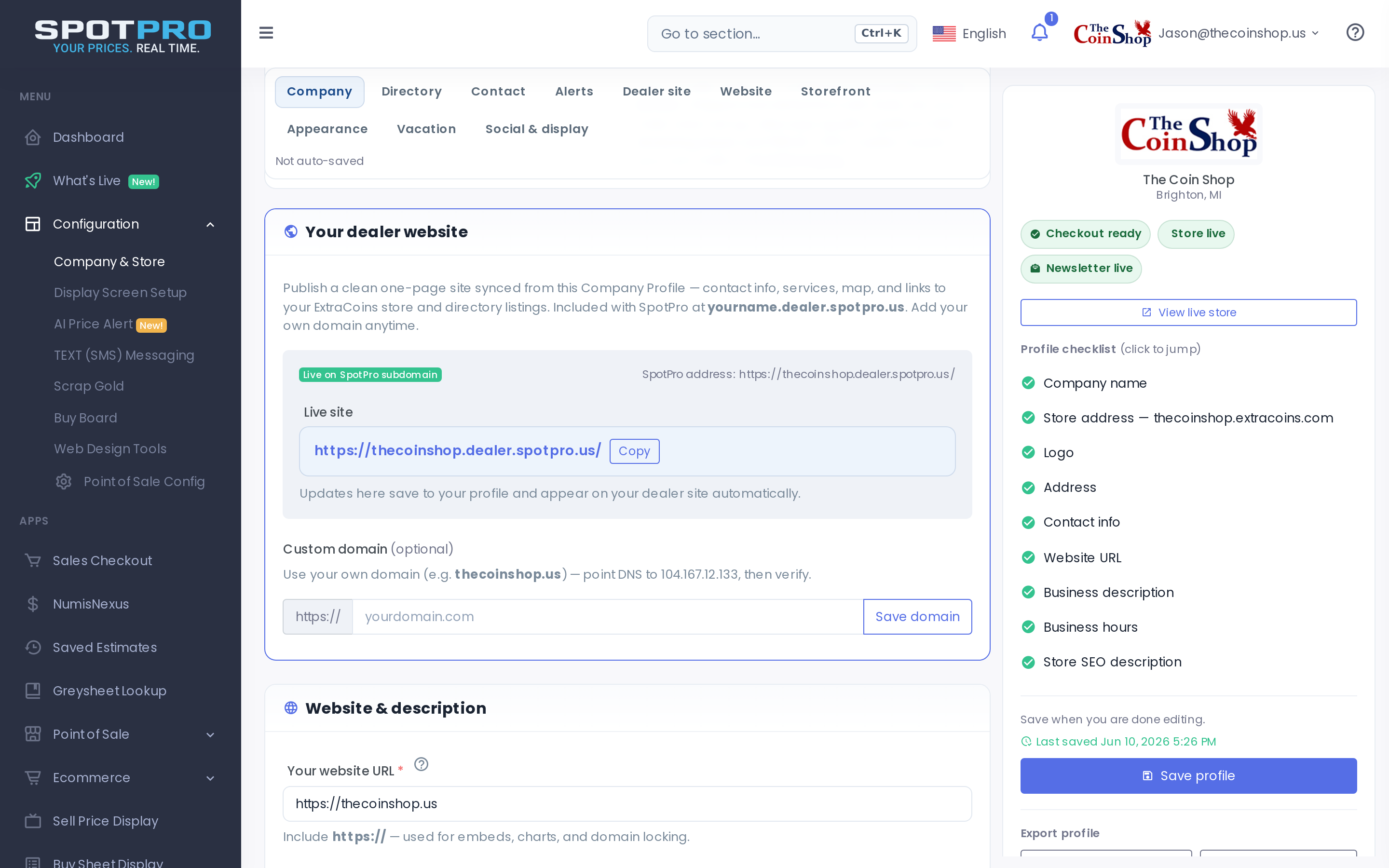
Company Profile — Dealer site section in the nav. 2 Fill in profile content first
Your dealer site shows shop name, logo, about text, services, contact fields, hours, and map from the same page. Complete Company, Contact, and Website sections so the public page looks complete.3 Claim your SpotPro address
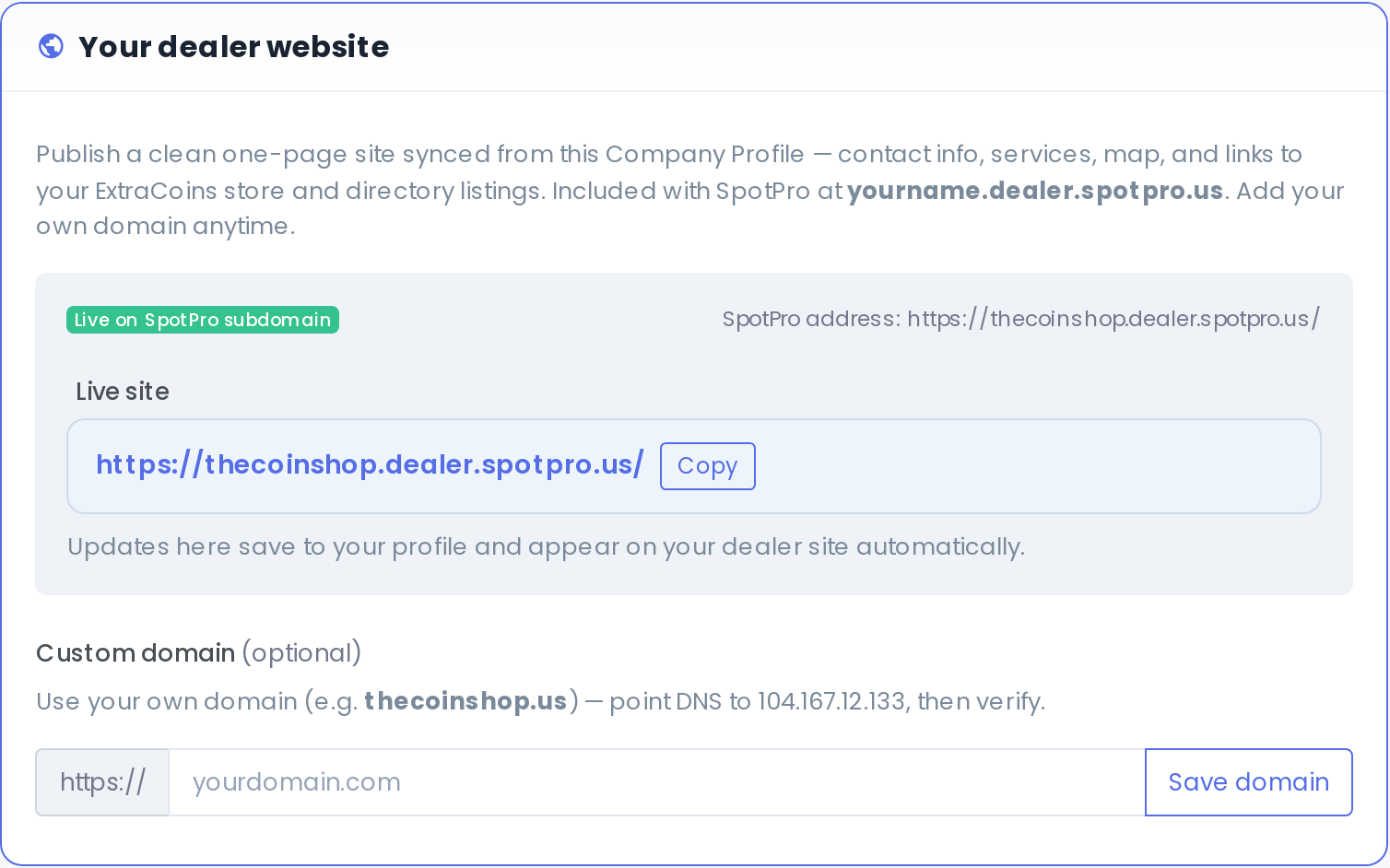
In Dealer site, type a short slug (letters, numbers, dashes — 3–63 characters). Example:thecoinshopbecomes thecoinshop.dealer.spotpro.us. Click Publish site. This address is permanent.After publish — live URL, Copy button, and custom domain field. 4 Preview your live site
Open the link shown after publish (or your slug URL). You should see your logo, about text, contact block, optional map, Shop online (if you have an ExtraCoins subdomain), and View directory profile when listed on USCoinShops.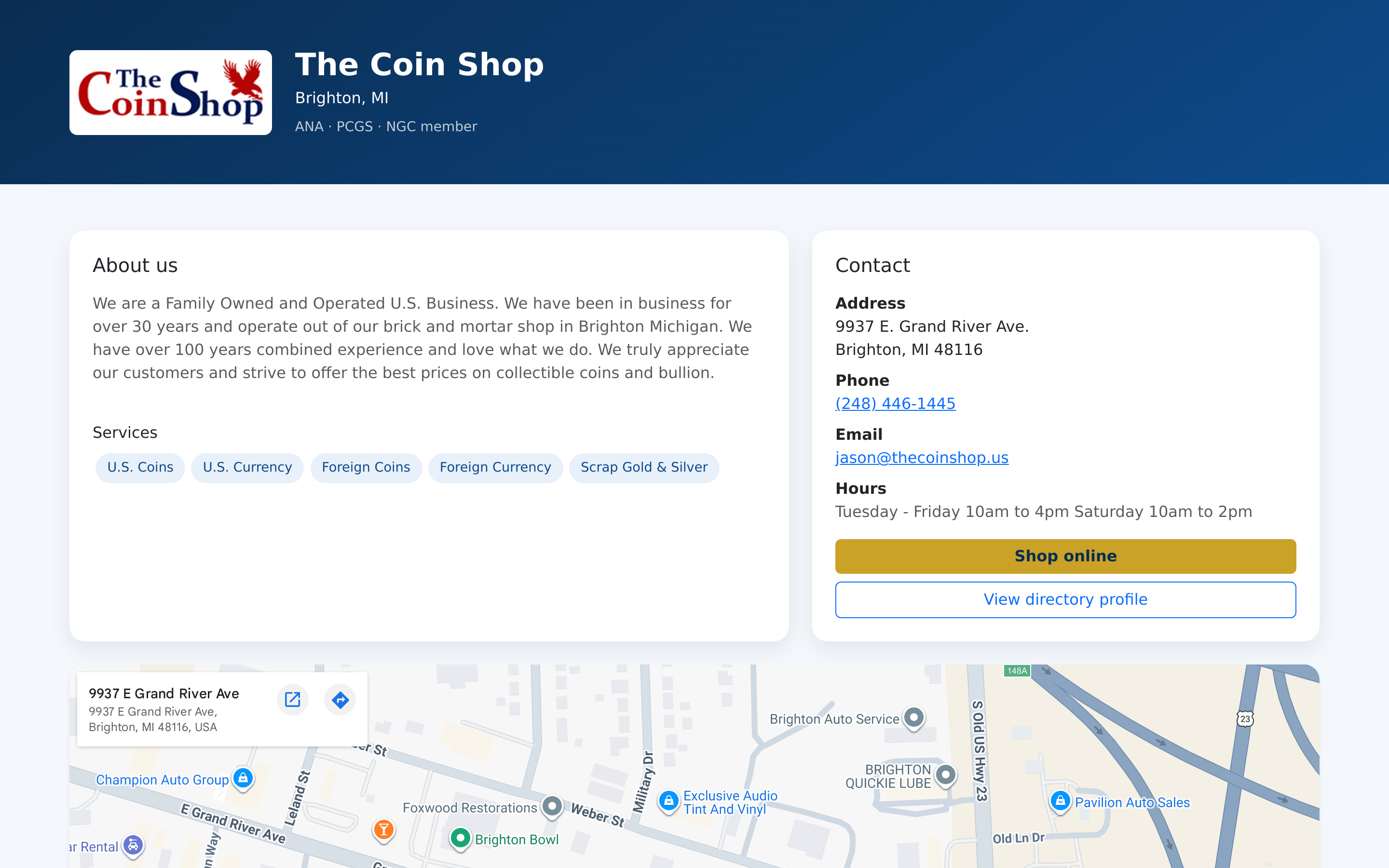
Public dealer site synced from Company Profile. 5 Website URL field
If your Website URL field was empty, SpotPro may set it to your dealer site URL automatically. You can still enter a different URL if you maintain a separate main website.6 Add a custom domain (optional)
Enter your domain (e.g.thecoinshop.us) and click Save domain. At your registrar, add an A record for@andwwwpointing to 104.167.12.133. DNS can take a few minutes to propagate.7 Verify DNS and go live
Back in Company Profile, click Verify DNS & go live. When DNS points here, your site is served on your custom domain. Youryourname.dealer.spotpro.usaddress still works.8 Keep it updated
Any Company Profile save updates the dealer site automatically — no separate CMS. Turn on Display phone, Display email, and Map it in Contact if you want those on the public page.
Screenshots